
Guidejar Review: The AI-Powered Tool for Interactive Guides and Documentation
Image source: Guidejar
Guidejar is a platform powered by AI that simplifies the creation of step-by-step guides and interactive product demonstrations. Having been through documenting numerous hours to creating user manuals and support documentation, I was pretty keen to explore Guidejar. In this review, I will provide my personal insights and findings on the functionality of Guidejar, its main features (including the Chrome extension, AI voiceovers, and translation options), the types of users who can gain from it (ranging from customer support teams to educators), and what makes it unique compared to other similar tools.
Introduction to Guidejar
Guidejar should be your primary documentation tool for rapidly expanding teams to train staff, onboard users, and cut down on repetitive questions. In other words, it allows you to convert any process into a handy guide or demo, which saves you time on documentation and increases your knowledge-sharing methods. This is super helpful for companies, freelancers, and teachers looking to expand knowledge without having to build everything from the ground up. As someone that is working in the IT industry simple, clear documentation is important, especially doing guides that can help your own team & end users follow clear structed guides.
From internal standard operating procedures (SOPs) to tutorials for customers, Guidejar's aim is to "balance knowledge and cut down on repeated questions." In my experience, those repetitive "how do I do such and such?" questions can really slow down those in customer facing support roles. Especially in a high fast-paced environment, I know especially working in the financial service sector, Guidejar reports this by allowing you to document a process once and share it broadly, enabling users to find answers on their own. Which is important, because in that way you can focus more of your time to more important matters.
Why choose AI? Guidejar does more than just a screen record it practices AI to restructure and improve guides. For illustration, it can automatically create written instructions, provide voice narration, and even translate guides into various languages. This AI "specialty" allows you to spend less time on editing and more time on ensuring what you are creating is quality
Key Features and Capabilities
Guidejar is packed with features that make documentation simpler and more fun. Check out some of the tricks this AI tool has to offer:
One-Click Capture (Chrome Extension & Desktop App): Guidejar provides a Chrome extension (and a desktop app for Windows & Mac) that allows you to record any workflow in real-time. Just hit “Start Capture” and go through your task – clicking buttons, filling out fields, navigating pages – and Guidejar automatically captures every step with screenshots and descriptions, (think of it as a keylogger but with extra abilities.) When you're finished, just click “Stop” and the guide is created instantly. This was one of the first features I tried, and I was impressed by how accurately it captured every click and scroll without me having to jot down a single note.
AI-Generated Voiceovers: One interesting feature is that you can add AI voice narration to your guides. In the editor, there's an option to enable a natural-sounding text-to-speech that reads the steps out loud, essentially giving your demo a voiceover. This not only adds a professional feel but also helps auditory learners who like to listen. Plus, it saves you the hassle of recording your own voice while still providing users with an engaging audio guide which as the main point, that way it cuts so much time on editing and writing.
Multilingual Translation: Guidejar can automatically translate your guides into various languages with just a click. This is fantastic for teams that want to cater to many different users– you create the guide once, and the AI can produce versions in languages like Spanish or French, making your documentation available to people from foreign lands . Which helps for example if another company branch are located in another country and you use the same systems, it helps them progress quickly in resolutions and additionally saves them time for going through the process of creating their own guides. From my research, I found this particularly beneficial for educators who are preparing study materials for diverse classrooms or for software companies that are catering to international users.
Interactive Demo Mode: Instead of just fixed articles, Guidejar allows you to create interactive demos. Think of an interactive demo as a virtual walkthrough where users can click and interact with a mock interface in real-time. This gives a more hands-on experience compared to just watching a video. For instance, rather than a passive tutorial video, you can let users click through steps in a safe sandbox environment. This kind of interactivity improves engagement and improves understanding. It’s what makes Guidejar stand out from many traditional documentation tools.
Rich Customization (Branding and More): Once you’ve captured your content, you can easily edit and customize each step. Guidejar’s editor lets you change up the focus of screenshots with pan & zoom effects, refine the click highlights, modify instruction text, and add extra tips or images. If you are using this tool at work, you can include your company’s branding (like colors and logos) to ensure the guides align with your style. Plus, there’s support for organizing content into Chapters (sections or slides) and creating conditional branching – allowing users to choose different paths in a guide (which is handy if a process has variations). These features make sure your documentation isn’t just a one-size-fits-all solution but can adapt to complexity when necessary.
Share and Embed Anywhere: Once your guide or presentation is set up, Guidejar makes it super easy to share it across. You can send it out through a link or insert it directly into websites, knowledge bases, learning management systems (LMS), or wikis. For example, you could place an interactive how-to guide right in your product’s help center. Plus, Guidejar lets you export guides as PDF files or even video files, so you can add them to slide presentations, attach them to emails, or share them on social media. This flexibility means your content can be accessible wherever your audience are reachable.
Analytics and Feedback: The platform comes with analytics to monitor how users interact with your guides. You can check if users are looking at the guides, which steps might lead to them coming off from the guide before finishing, and more, helping you enhance the content. Guidejar even lets you add call-to-action (CTA) buttons at the end of guides – like a button that says “Try this feature now” or “Sign up for a free trial” after a product tour. This is perfect for incorporating guides into your sales or onboarding process.
Help Center & Knowledge Base: One standout feature is the ability to create guides into a no-code help center on your own custom domain. Basically, Guidejar can act as your documentation centre – organizing all your how-tos, demos, and FAQs in one branded site that users can easily search. There’s also a Help Center widget that allows you to embed this knowledge base as a small self-help tool within your app or site. This can really ease the burden on customer support by enabling users to find answers self-sufficiently.
Dynamic Content: People that are more into the specific would like the feature Dynamic Variables, which let you tailor guides for each user (for instance, inserting the user’s name or account info in the guide content), and Lead Capture Forms that you can insert in guides to collect users information or feedback, which can be beneficial if you share a product demo and want to capture interested leads). These touches underscore that Guidejar is not just about static documentation – it’s about interactive content that can even drive conversions.
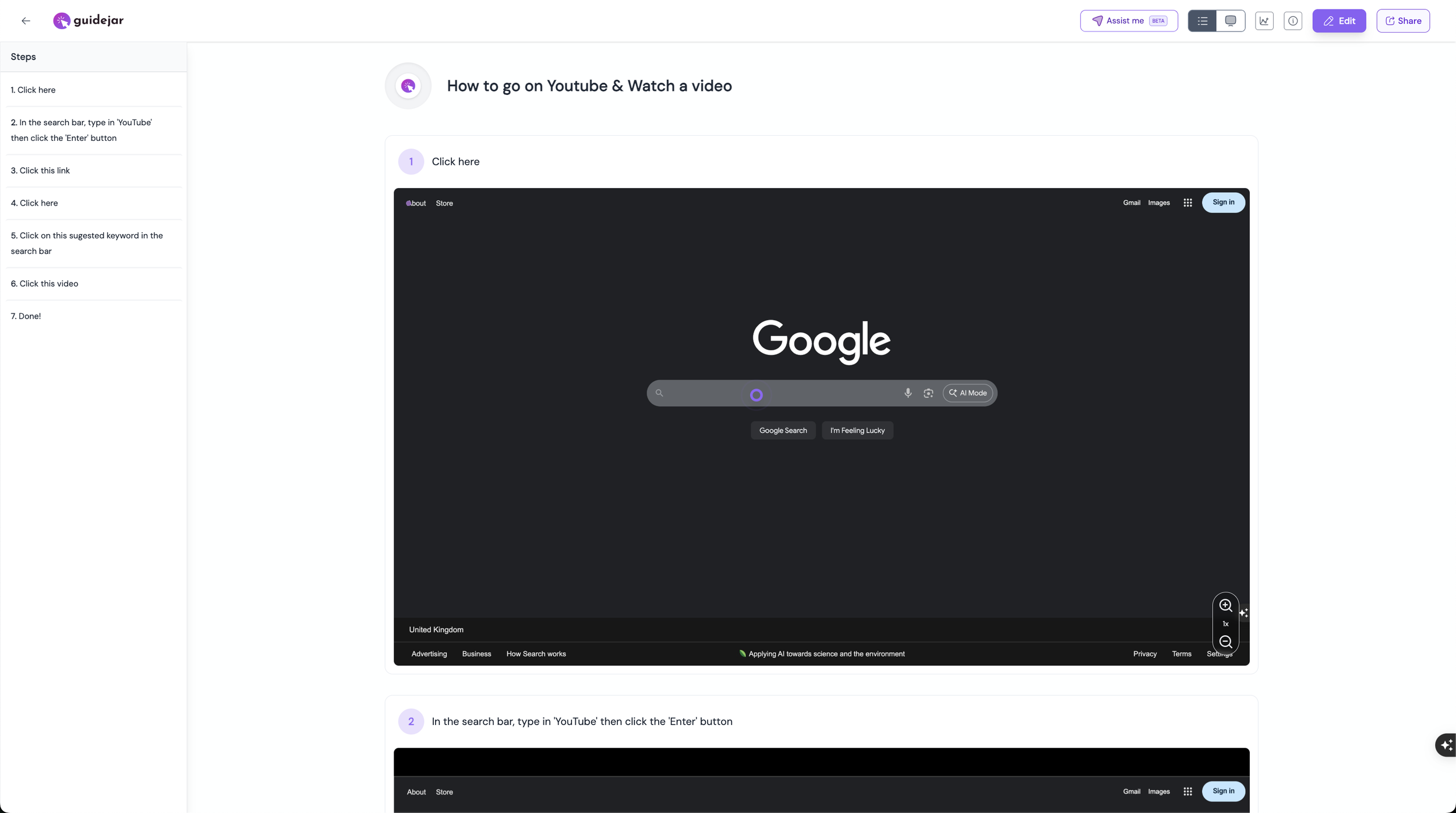
The image above shows an example of Guidejar’s interface while editing a guide created on ‘How to go on Youtube & Watch a video’. You can see a step-by-step instruction with highlights on the screen and the editing toolbar. Illustrating to browser on the internet to go an watch a video on YouTube.
As shown above, the User Interface is clean which makes it a lot easier to navigate enough you the unnecessary clutter of different functions. On the left panel, you have a list of steps, and on the right is a preview of the guide steps with the screenshot. Guidejar’s design makes it easy to modify steps or edit text. When I started the trial, I grasped pretty quickly on how to move around the website – the interface is straightforward, and tooltips within the app helped me whenever I’m stuck and need a little guidence.
How to Create a Guide (My Experience)
Using Guidejar to create a guide is a three-step process: Record, Customize, Share – and it really is as simple:
Record: I installed the Guidejar Chrome extension (which takes seconds) and clicked “Start Capture”. I wanted to start of simple so I working in IT support what common issues do users have daily that is a quick simple step? (for example, I wanted create a guide on how to log into a Meeting room booking system which is on the web). So when I started the recording I done all the steps needed to be done to show users how they can log into the booking system. Guidejar without interruptions quietly captured screenshots and each click I did in the background. I didn’t have to pause or note anything; it was hands-off.
Once done, I hit “Stop Capture” and within moments a draft guide was ready with all the steps listed out. When I saw the results I was pretty happy on the whole capture, for something that would take 30mins to get everything created now chopped down to 2mins.
Customize: Next, when I checked the auto-generated guide. Guidejar had already written instructions for each step (like “Click on this link”) using its AI, which gave me a great starting point. Then I slightly changed the text because what Guidejar basic wording was generic. The screenshots were captured automatically, and I used the pan & zoom feature to bring out the exact part of the screen relevant to each step (useful when a full-screen shot is cluttered with other things).
I also tested the AI voiceover – with one click, an English voice narration was added, reading out the step text in a clear, natural tone. Notably, I could switch to other languages and the text and voice would translate, which really brings out the great feature that Guidejar’s multilingual support.
Guidejar also let me add a chapter break to split the guide into two sections, and I tried creating a branching path where the user could choose one of two workflows to follow (this is great for “if X, do steps A; if Y, skip to steps B” scenarios). Overall, the customization section let me do a clean up to the guide and tailor it to my viewers.
Share: So on this stage I pretty much finished with my first guide, where now I’m able to share to people with a shareable link. I was able to add the interactive guide on a test webpage with a small embed code (just like embedding a YouTube video). When I clicked on that page, the guide loaded, and I could click through it as if I were using the actual product – much better in terms of engagement than a PDF or video.
Guidejar also allowed me to export the guide as a PDF, which downloaded a nicely formatted document with the screenshots and instructions (which is a good because it was also convenient when I wanted to send an email.) You can even export as a video: Guidejar will compile the steps and voiceover into an MP4 video file. This multi-format sharing (URL, embed, PDF, video) means I can repurpose the same guide in different ways if I wanted to which gives good flexibility.
One thing I seen on the sharing section: Guidejar has a option where you can give people specific access to the guide. For internal use, you can keep guides private to your team or require login (so if I provide access to a person or work colleague using the email they gave me, then they will then get an email showing that I have provisioned them access. Then when they open the link and all they need to do is login with their normal credentials such as their own email & password, so that they can open the guide to view).
Who Should Use Guidejar?
Guidejar’s flexibility means it can be valuable across different roles and industries. Based on my impressions and the use cases highlighted in the documentation, here are some of the people who would benefit most:
Customer Support Roles: Those working in support can turn frequently asked questions or troubleshooting steps into visual guides. Instead of typing out instructions for the 100th time or hopping on a call, they can send a Guidejar link showing the customer exactly what they need to do to resolve an issue. Going through the new way of a “smarter support” method cuts down repetitive tickets and enables customers/users to be more self-sufficient. For example, a SaaS (Software-as-a-Service) support team could have guides for resetting a password, How to check for system updates, or using key features – all available in the knowledge base section for customers/users to click through on their own.
Educators and Trainers: Teachers or corporate roles that are based on learning and development of staff need to show how to do something on a computer (like using a new software app). With the help of Guidejar, an educator can quickly create a walkthrough for those learning, whether it’s how to use a learning platform or an interactive lesson guide. In fact, Guidejar provides a free study guide maker tool on their site for instructors to create study materials. Because guides can be translated and include voiceovers, they’re accessible to students of different languages and learning styles. This can be a bug bonus for Instructors because they can create consistent training modules for onboarding new employees – ensuring everyone follows the same steps dependably.
Product Consultants and Sales Account Managers: If you’re responsible for business or user onboarding, Guidejar is a gem. You can create interactive product tours that showcases the software app’s features. The fact that guides can have lead capture forms and call-to-action links means they’re not just tutorials but can be part of a sales funnel. For example, a Product Consultant could build a demo for a new feature and insert a signup form at the end for interested users to upgrade or request a trial. Guidejar demos are “more engaging and tailored” than traditional videos, which can significantly boost conversion rates by letting users try the product in a guided method before committing.
Team Documentation and SOPs: Any team that relies on internal documentation (HR, Operations, IT, etc.) can use Guidejar to create their Standard Operating Procedures more quickly. Instead of building a long worded guide in Microsoft Word with screenshots pasted in, one of the people in each department can capture the process as they do it and have an instant guide. Jennifer Conner, one user, noted that Guidejar “made my SOP processes so much quicker for my team”. The guides ensure that if one person learns how to do a task, others can follow the guide and replicate it, continuing reliability in processes.
Sales and Marketing: For presales presentations or marketing content, Guidejar allows creation of sales presentations that convert – as the Chrome Store listing puts it, “share personalized product demos that close deals faster.” A sales manager or associate could send a potential client an interactive demonstration tailored to their use case. It’s more hands-on than a fixed slide deck and can be accessed without arranging a live demo call. Marketing teams can also produce how-to content or tutorials to distribute on blogs or social media (for example, exporting the guide as a video for a quick TikTok/YouTube tutorial).
In overview, if your role requires you to explain “how to do X” on a computer, Guidejar AI system is something that you would want to highly consider. It’s already used by Software-as-a-Service companies, agencies, and freelancers to teach their users, and the range of use cases is broad – from study guides and onboarding checklists to customer support FAQs and product tours.
Limitations or Things to Consider
No tool is perfect, and there are a few considerations with Guidejar (drawn from both my use and user feedback):
The Free Plan Limits: Guidejar’s free tier lets you create up to 5 guides. This is great to try it out (and for very small needs), but growing teams will likely need to upgrade to a paid plan for unlimited guides. Advanced features like AI voiceover, translation, help center widgets, etc., are also mostly on paid plans. So, budget for a subscription if you plan to use it heavily. The good news is the pricing is flexible and there are different tiers (from individual to enterprise).
Browser Extension Dependency: The core capture process relies on a Chrome/Chromium extension for web workflows. If your organization restricts extensions or if you prefer a fully web-based capture, that might be a hiccup. However, the presence of a Desktop app mitigates this by allowing screen capture for desktop applications and likely not needing the browser in those cases. In my trial, the extension worked flawlessly on Chrome; just keep in mind you need to use a Chromium-based browser or the desktop recorder.
Learning Curve for Advanced Features: While basic guide creation is straightforward, some of the fancier features (like conditional branching, dynamic variables) might require a bit of learning and planning in how you design your guides. The User Interface provides help, and there are docs/FAQs, but new users should be prepared to iterate. That said, these features are not mandatory so you can use those features to your choice – you can create very effective guides without using them on day one.
Collaboration: Guidejar does support team accounts and role-based access. If multiple people want to collaborate on documentation, ensure you set up your workspace and permissions accordingly. It’s not a downside, just something to configure so that, for example, your whole support team can contribute to the guide repository.
Overall, these are little issues against a whole range of benefits. There are more pros than cons (easy recording, quick editing, multi-format output, AI enhancements, etc.).
Conclusion
After diving into Guidejar, I can confidently say it’s a robust and versatile AI tool for documentation. It transforms the tedious task of creating tutorials into an almost enjoyable experience. For anyone responsible for explaining software or processes – be it a support agent answering customer questions, a teacher showing students a new app, or a product manager onboarding users – Guidejar can save you time and elevate your content quality. By combining written guides, screenshots, voice, and interactivity, it closes the gap between traditional documents and live training sessions.
My general impression is that Guidejar brings to light a great balance between power and ease of use. Even with minimal trial and error, I was able to build a professional-looking guide that I’d be happy to share with my colleagues at work. The fact that it’s AI-powered means it’s highly likely to be more smarter (perhaps suggesting improvements to steps, generating FAQs automatically, etc., which it already hints at with an “AI-generated FAQs” feature in their comparisons). It feels like a tool built for the modern, fast-paced environment where you need to train or inform people at scale, without spending all day on documentation.
If you’re tired of creating guides from scratch and spending a lot of time to writing, grabbing screenshots or videos etc, or you want to make your user guides more interactive, I recommend giving Guidejar a try. You can start with their free plan to create a couple of guides and see the value for yourself.
Go over to the (official Guidejar website) and sign up for a free account. In minutes, you could have your first interactive guide ready to share. Try out Guidejar and take your

Learn Place AI offers a next-gen personalised learning assistant with custom syllabuses, interactive guides and progress tracking. Perfect for students, professionals and teams looking to upskill faster.